Before you start
- You must be logged in to create or edit a Car Album.
- Fields marked with an * are required. If any required fields are missing, the site will prevent you from saving until they are completed.
- Your first Save may take a little longer than later saves (especially after adding photos). That’s normal — just let it finish.
- You can create an album in stages. You do not have to complete every section in one go.
Step 1 — Open “My Car Albums” and choose Create
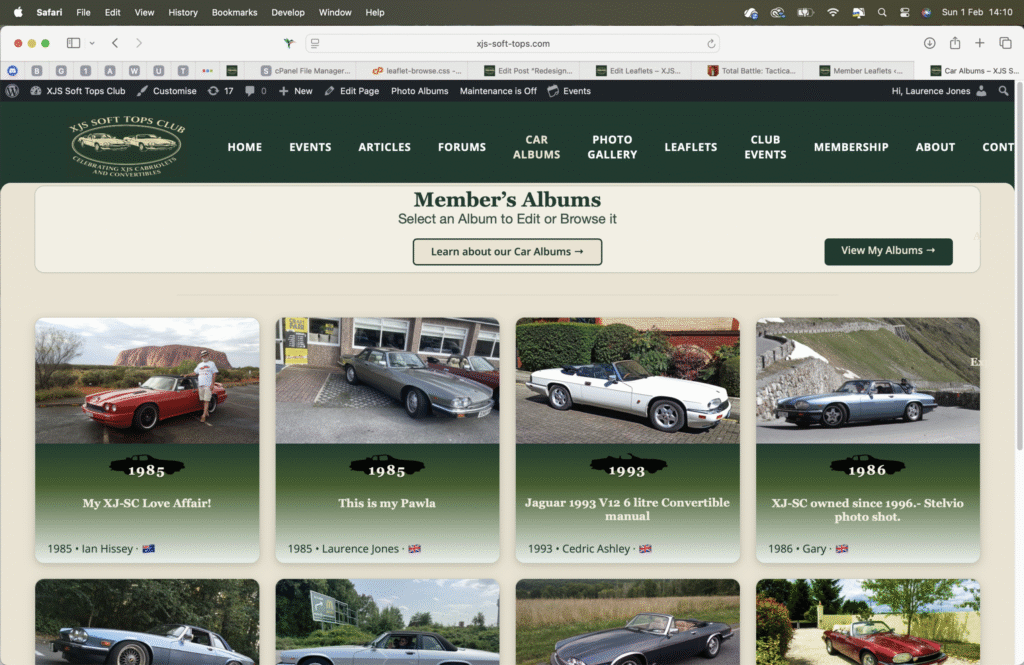
From the menu, go to Car Albums and then choose My Car Albums. If you have not created an album yet, you’ll see a message inviting you to create your first one.
<img src="https://xjs-soft-tops.com/wp-content
Please log in to continue reading this article.